How to add a live cricket score overlay to OBS
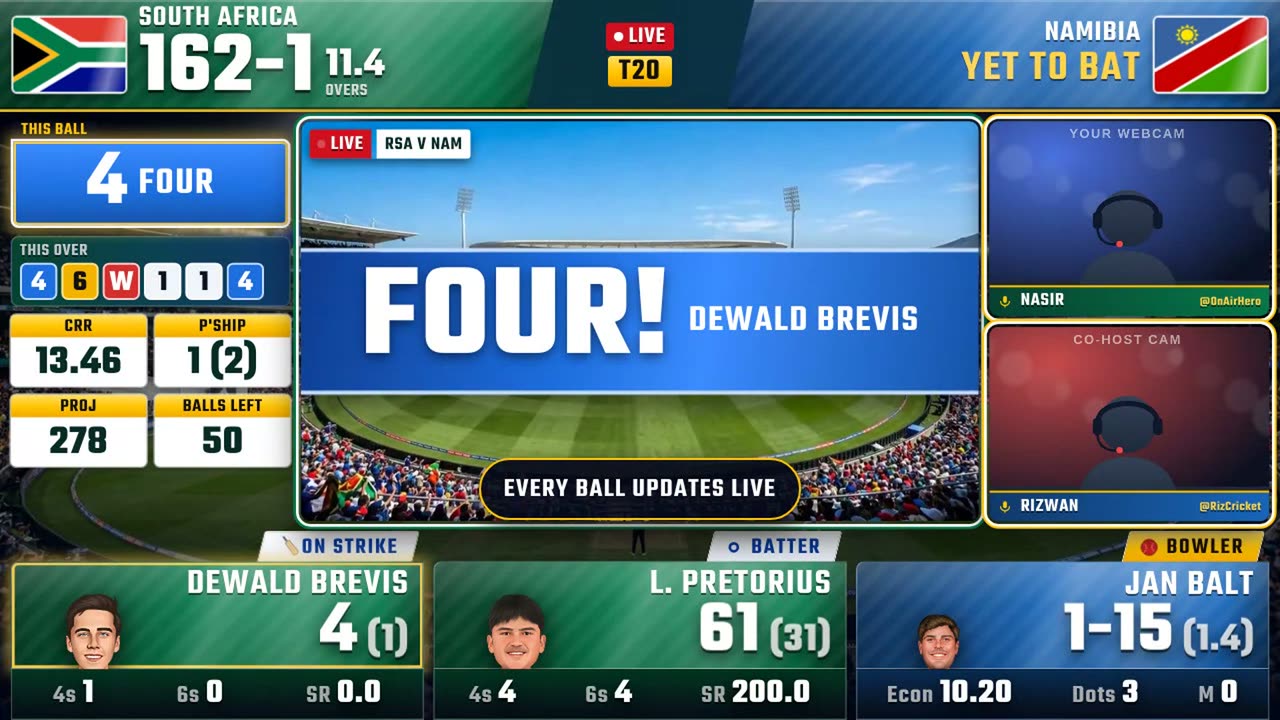
This guide puts a TV-style live cricket scoreboard on your OBS stream. It updates ball by ball by itself while you do the commentary. It takes about ten minutes the first time. You need a Windows or Mac computer, OBS Studio and Google Chrome.
- 1. Install OnAirHero
- 2. Connect a live match
- 3. Add the score overlay to OBS
- 4. Add your webcam (optional)
- 5. Go live on YouTube, Facebook or TikTok
1. Install OnAirHero
- Download the app
Go to onairhero.com/download and choose Windows, Mac (Apple Silicon) or Mac (Intel). The link always gives you the newest version.
- Install it
On Windows, extract the zip and run “OnAirHero Setup”. If Windows shows “Windows protected your PC”, click More info → Run anyway. On Mac, open the .dmg and drag OnAirHero into Applications.
- Open OnAirHero
It starts in the Free edition: live scores, the Arena layout and one host cam. Pro customers click “Enter licence key” and paste the key we sent on WhatsApp.
2. Connect a live match
- Add the Chrome extension
The first-start guide in the app gives you the extension. Unzip it into a folder you will keep, open chrome://extensions in Google Chrome, turn on Developer mode and click “Load unpacked”.
- Open the live match in Chrome
Open the live ball-by-ball page of a match that is on now and keep that tab open for the whole stream. It can stay in the background.
- Press “Stream this match”
The match appears as a card in OnAirHero. Click Stream this match. The step ticks itself off when live scores arrive.
3. Add the score overlay to OBS
- Set the canvas
In OBS: File → Settings → Video. Set the Base (Canvas) Resolution to 1920×1080 and FPS to 30.
- Make a scene
In the Scenes dock click + and name it “Live Match”.
- Add the overlay as a Browser source
In Sources click + → Browser and name it “OnAirHero Overlay”. Paste the overlay link from the top of the OnAirHero deck (http://localhost:4000/overlay), set Width 1920 and Height 1080, and click OK. The live scoreboard appears on your stream.
4. Add your webcam (optional)
- Turn on OBS remote control once
In OBS open Tools → WebSocket Server Settings, tick Enable WebSocket server, click Show Connect Info and copy the password into OnAirHero’s Video & Cams tab, then click Connect.
- Add your camera in OBS
In your scene: Sources → + → Video Capture Device, name it “Cam 1” and choose your webcam. Keep it below the overlay in the Sources list.
- Link it
In OnAirHero click Cam 1 in the list. Your webcam jumps into the cam frame and moves with every scene change. Type your name and @handle for the name plate.
5. Go live on YouTube, Facebook or TikTok
- Connect OBS to your platform
File → Settings → Stream. For YouTube choose “YouTube - RTMPS” and Connect Account, or paste the stream key from YouTube Studio. Facebook and TikTok work the same way with their stream key.
- Check your mic
In the OBS Audio Mixer add Noise Suppression and a Compressor to your mic.
- Start streaming
Click Start Streaming. Test with an unlisted stream first. From now on every run, wicket and over updates on screen by itself.
If something isn't working
- Scores not updating? Check that the match tab is still open in Chrome and that the deck's top line says “Live scores: Updated”.
- Overlay blank in OBS? Make sure OnAirHero is open, then right-click the Browser source → Refresh.
- Camera in the wrong place? Keep the camera source below the overlay in OBS and click Connect again in Video & Cams.
- Worried about copyright? OnAirHero only draws the score graphics. Don't re-stream TV pictures or commentary you don't have the rights to. Talk over the match with your own camera and analysis.
Ready to try it?
Free download. Still stuck? We help on WhatsApp in English, Urdu or Hindi.
Prefer a printable copy with screenshots? Download the PDF guide.